Common DStv & GOtv Error Messages Explained - What They Mean and How to Fix Them

By Precious ChiomaPublished on March 10, 2026
Common DStv & GOtv Error Messages Explained - What They Mean and How to Fix Them

If you use DStv or GOtv in Nigeria, you’ve probably seen strange messages pop up on your screen instead of your favourite channels. Messages like subscription expired, no signal, service error, or channel not available can suddenly appear, even when you’re sure you paid.

For many people, these error messages are confusing and annoying. Some assume the decoder is spoiled. Others think their money is gone. In reality, most DStv and GOtv error messages are normal system responses, and many of them can be fixed without calling anyone or paying a technician.

This article explains the most common DStv and GOtv error messages, what they actually mean, and the simple steps you can take to fix them.

Why DStv and GOtv Error Messages Happen

Cable TV systems work with signals, subscriptions, and automated updates. When any part of that process fails or delays, the decoder shows an error message instead of the channels.

Common triggers include:

  • Expired or partially updated subscriptions  
  • Weak or lost signal  
  • Decoder is being switched off during updates.  
  • Wrong package selection  
  • Temporary system delays  

Once you understand the message, fixing the issue becomes much easier.

“Subscription Expired” or “Account Not Active”

This is one of the most common messages users see. It simply means the system currently sees your account as inactive.

This can happen when:

  • Your subscription actually expired  
  • Payment was made but has not yet been processed.  
  • The decoder number used for payment was incorrect.  

Sometimes, even after payment, the decoder still displays this message because it hasn’t received the update signal.

How to fix it:

Confirm that payment was successful and for the correct decoder or smartcard number. Ensure the decoder is switched on and connected to a good signal. Leave it on for a few minutes so it can refresh automatically.

“No Signal” Message

This error has nothing to do with your subscription. It means your decoder is not receiving a signal from the satellite.

Common causes include:

  • Dish shifted by the wind or rain  
  • Loose or damaged cables  
  • Obstruction blocking the dish  
  • Faulty LNB  

How to fix it:

Check that all cables are firmly connected. Look outside to ensure the dish hasn’t moved and nothing is blocking it. If the signal still doesn’t return, a technician may need to realign the dish.

“Channel Not Available” Message

This message often confuses users because the decoder seems to be working, but specific channels refuse to open.

This usually means:

  • The channel is not included in your bouquet  
  • You recently downgraded your subscription.  
  • The channel was removed from that package.  

How to fix it:

Confirm your current bouquet and compare it with the official channel list. If the channel is not part of your plan, it will not open unless you upgrade.

“Service Error” or “E30 / E16” Messages

These errors usually relate to subscription updates and smartcard communication issues.

They may appear when:
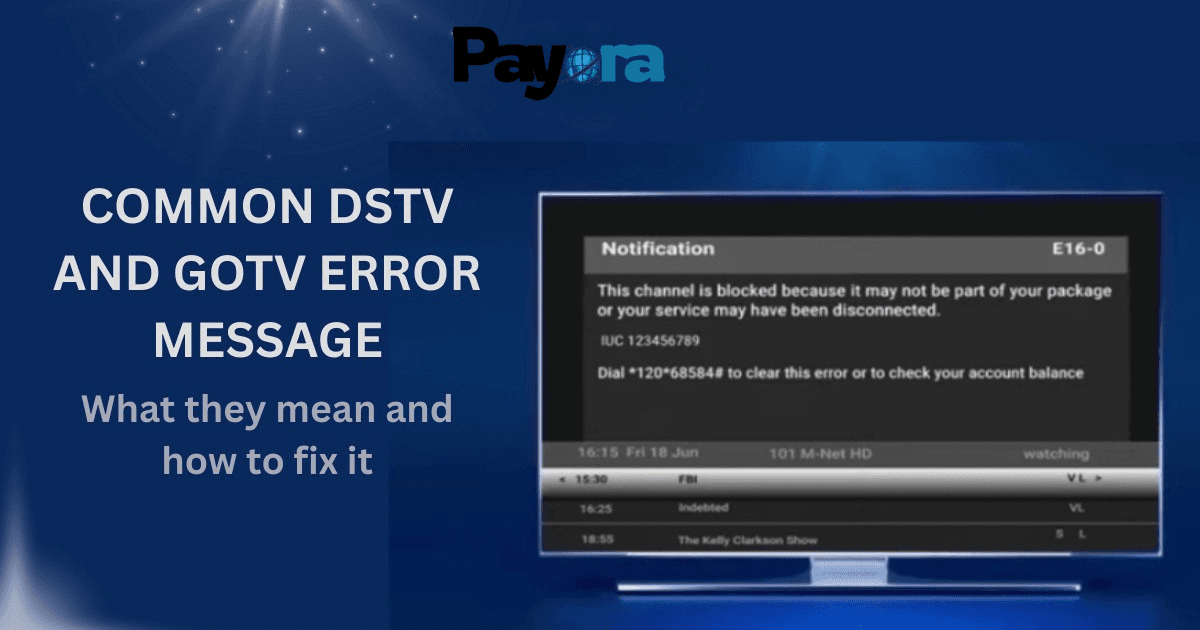
  • Payment hasn’t synced with the decoder  
  • The decoder was off during payment.  
  • There is a delay in system updates.  

How to fix it:

Ensure your decoder is on and connected to a strong signal. Leave it on a free channel for a few minutes. Restarting the decoder can also help it reconnect to the service.

“Smartcard Error” Message

This means the decoder is having trouble reading the smartcard inside it.

Causes include:

  • Smartcard not properly inserted  
  • Dust or damage on the card  
  • Faulty or mismatched smartcard  

How to fix it:

Carefully remove and reinsert the smartcard, making sure it sits properly. Avoid touching the chip area. If the error persists, customer support may need to check the card status.

“Decoder Not Authorized” Message

This error usually appears when:

  • The decoder hasn’t been activated  
  • The account was suspended.  
  • There’s a mismatch between the decoder and the smartcard.  

How to fix it:

Confirm your decoder details and subscription status. In many cases, the issue clears once the decoder receives a fresh authorization signal.

Errors Caused by Long Periods of Inactivity

If a decoder has been switched off for weeks or months, it may miss system updates. When turned back on, it may show multiple error messages or fail to load channels.

How to fix it:

Leave the decoder on for a while so it can catch up on updates. Avoid switching it off repeatedly during this period.

When Errors Are Not Your Fault

Sometimes, error messages appear due to:

  • System maintenance  
  • Network downtime  
  • Temporary service disruptions  

During such times, many users experience the same problem simultaneously.

What to do:

Give it some time and try again later. These issues are usually resolved automatically.

How to Avoid Frequent Error Messages

You can reduce how often these issues occur by:

  • Keeping your decoder switched on after payments  
  • Ensuring your dish is properly installed.  
  • Avoiding frequent power disconnections  
  • Paying for the correct bouquet  

Conclusion

DStv and GOtv error messages may look scary, but most of them are not serious. They are simply the system’s way of telling you what needs attention. Once you understand what each message means, you can solve most problems yourself without stress.

Knowing these fixes saves time, money, and frustration, especially when you need your TV working urgently.


Download the Payora App

Experience seamless transactions on the go. Top up your wallet, purchase data, pay bills, and trade gift cards - all from your smartphone.

Get it on Google PlayDownload on the App Store
Payora Mobile App