Method 1: Create Apple ID Directly on Your iPhone (Easiest Way)
This is the most common method in 2026.
Step-by-step:
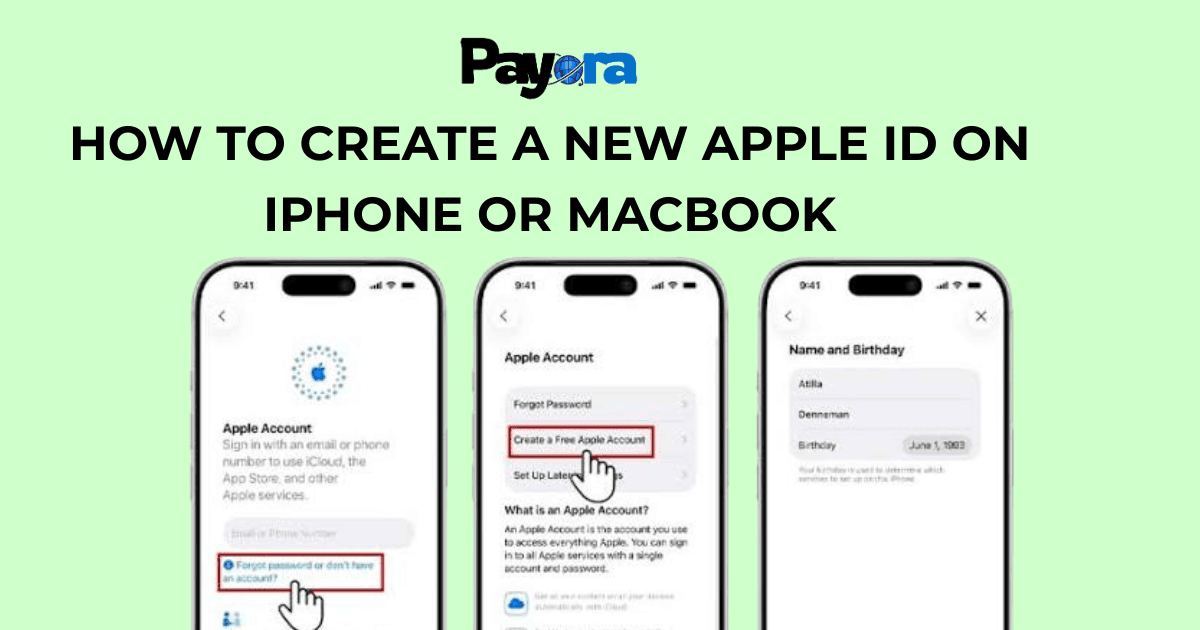
- Open the Settings app on your iPhone.
- Tap Sign in to your iPhone at the top.
- Tap Don’t have an Apple ID or forgot it?
- Choose Create Apple ID.
- Enter your birth date and tap Next.
- Choose whether to use your current email or get a new iCloud email (@icloud.com).
- Most people use their existing Gmail or Yahoo for convenience.
- Enter your email address and create a strong password.
- Apple will send a verification code to that email. Check your inbox and enter it.
- Enter your phone number for two-factor authentication.
- Verify the code sent via SMS.
- Agree to the Terms and Conditions.
- You can add a payment method now or skip it (you can add one later).
That’s it! Your new Apple ID is ready. You’ll be signed in automatically on that device.
Method 2: Create Apple ID on MacBook or iMac
The process on Mac is very similar but feels slightly different because of the bigger screen.
Step-by-step on macOS:
- Click the Apple menu () in the top left corner.
- Choose System Settings.
- Click Sign in at the top.
- Click Create New Apple ID.
- Follow the same steps as on iPhone - enter birth date, email, password, etc.
- Verify your email and phone number.
Mac users often prefer this method because it’s easier to type long passwords and manage everything on a keyboard.
Method 3: Create Apple ID on the Web (From Any Device)
This is useful if you don’t have an Apple device yet or want to create it on a Windows PC.
- Go to appleid.apple.com in any browser.
- Click Create Your Apple ID.
- Fill in your details: name, birthday, email, password.
- Verify your email address.
- Add your phone number for security.
- Complete the setup.
After creating it on the web, you can sign in on your iPhone or MacBook.
Important Tips for Creating a Strong Apple ID
- Use a password you don’t use anywhere else.
- Enable two-factor authentication (it’s automatic now).
- Use a real email you can access easily.
- Add a recovery email and phone number.
- Write down your Apple ID somewhere safe (but not on the device itself).
Common Problems When Creating Apple ID & How to Fix Them
- “This email is already in use.”
You can’t use the same email for multiple Apple IDs. Use a different one or recover the old account.
- “Verification code not received.”
Check your spam folder. Wait 2-3 minutes. Try resending.
- “Unable to create Apple ID.”
Make sure your internet is stable. Try a different network. Update your device if possible.
Apple has strict rules. You need to be at least 13 years old (or have parental consent).
After Creating Your Apple ID - What to Do Next
- Sign in on all your Apple devices.
- Set up iCloud backup.
- Customize your profile picture and name.
- Add a payment method when you’re ready to download paid apps.
- Explore Apple services (Apple Music free trial, iCloud storage, etc.).
How to Manage Multiple Apple IDs
Many people keep two accounts:
- Personal Apple ID for iCloud and private stuff
- Work or Family Apple ID for sharing
You can switch between them easily in Settings, but you can only be signed into one iCloud account at a time on each device.
Security Best Practices for Your New Apple ID
- Never share your password.
- Use a password manager.
- Regularly check signed-in devices.
- Review app permissions.
- Keep your recovery options updated.
Final Thoughts
Creating a new Apple ID in 2026 is simple, fast, and free. Whether you do it on iPhone, MacBook, or through the website, the process takes less than 10 minutes once you know the steps. The key is using a good email, strong password, and verifying everything properly.
Now that you have your Apple ID, you can fully enjoy your iPhone or MacBook, download apps, back up your photos, use iMessage, and explore everything Apple has to offer.