Most Android phones have built-in data tracking features. Here’s how to use them:
1. Check Data Usage in Settings
- Go to Settings > Network & Internet > Data Usage.
- You’ll see how much data you’ve used in the current cycle.
- Tap Mobile Data Usage to see a breakdown by app.
2. Set a Data Limit or Warning
- In the Data Usage menu, select Data Warning & Limit.
- Turn on Set Data Limit and choose your subscription size (e.g., 10GB).
- Your phone will warn you when you’re close to the limit.
3. Restrict Background Data
- Open Settings > Apps & Notifications > See all apps.
- Select an app > Mobile Data & Wi-Fi > Turn off Background Data.
- This ensures apps only use data when you open them.
How to Track Data Usage on iPhone
iPhones also come with built-in tools to monitor mobile data.
1. Check Data Usage
- Go to Settings > Mobile Data (or Cellular).
- Scroll down to see total data usage and breakdown per app.
2. Reset Usage Every Month
- Scroll to the bottom and tap Reset Statistics at the start of your billing cycle.
- This keeps your tracking aligned with your data plan.
3. Turn Off Background App Refresh
- Go to Settings > General > Background App Refresh.
- Turn it off completely or restrict it to Wi-Fi only.
Third-Party Apps for Tracking Data
If you want more control, you can try:
- My Data Manager (Android/iOS) - tracks usage in real time.
- GlassWire (Android) - shows detailed reports and alerts.
- Your Network Provider’s App - like MyMTN, MyAirtel, or Glo Café, which gives real-time data balances.
Tips to Avoid Wasting Data
- Download instead of streaming (e.g., YouTube offline, Spotify downloads).
- Lower video quality when watching online.
- Turn off auto-play on social media.
- Use Wi-Fi for large updates like apps and iOS/Android upgrades.
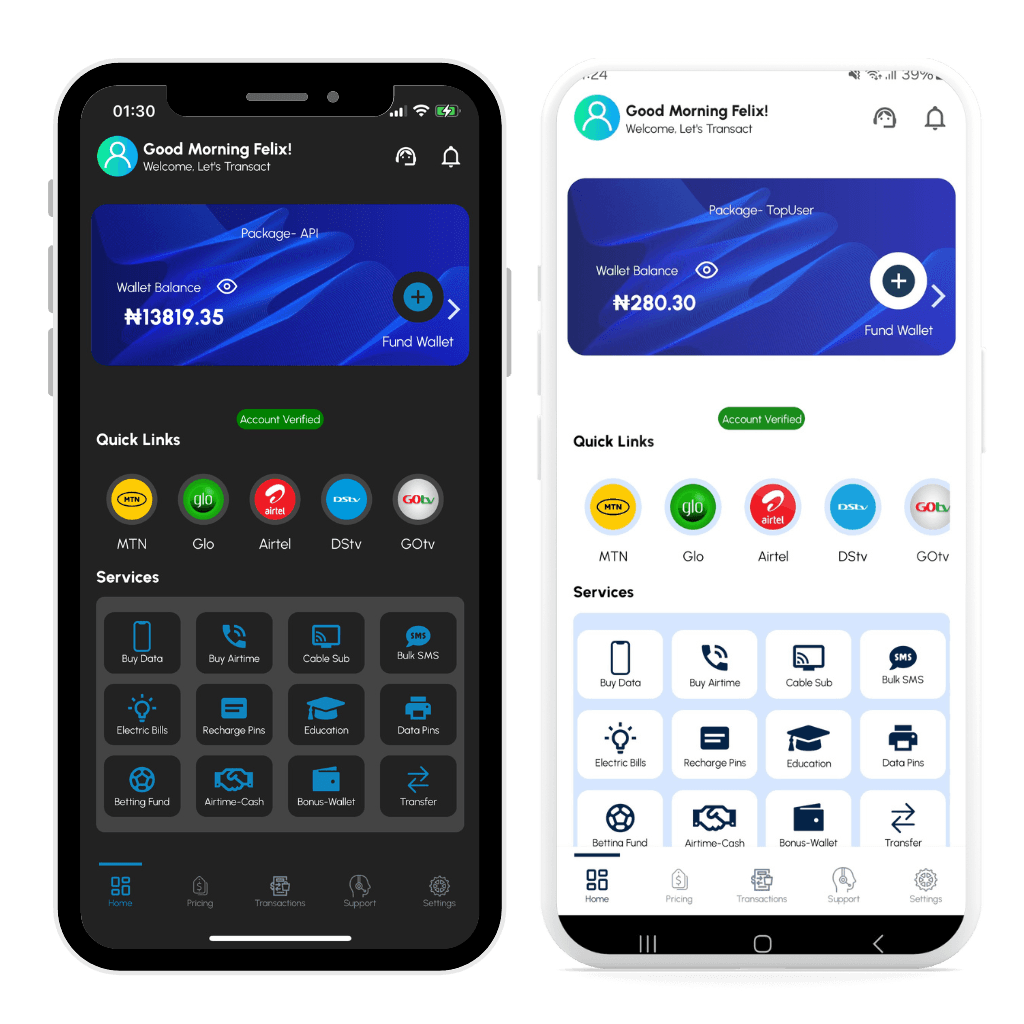
Using Payora to Manage Your Data
At the end of the day, you need affordable and reliable data. With Payora, you can: