MTN eSIM in Nigeria 2026: Price, How to Activate, QR Code, Supported Phones & Everything You Need to Know

By Precious ChiomaPublished on May 13, 2026
MTN eSIM in Nigeria 2026: Price, How to Activate, QR Code, Supported Phones & Everything You Need to Know
Share:

A lot of Nigerians are gradually moving away from physical SIM cards, and honestly, it’s easy to see why. Losing a SIM card, damaging it, or going through the stress of a SIM swap can be frustrating, especially when your number is linked to your bank account, WhatsApp, and important apps.

That’s where MTN eSIM comes in. Instead of using the regular plastic SIM card, your line is activated digitally on your phone. It’s cleaner, more convenient, and perfect for people who want to use two lines on one device without constantly switching SIMs. In 2026, more smartphones now support eSIM, and many MTN users in Nigeria are beginning to make the switch for the simplicity and flexibility it offers.


This guide explains everything you need to know: what it is, how much it costs, how to activate it with the QR code, which phones support it, and real tips from users. Let’s dive in.

What is MTN eSIM?

eSIM stands for embedded SIM. Instead of a physical SIM card you insert into your phone, the SIM is built into the phone’s hardware. MTN gives you a digital profile (via QR code) that you scan to activate service.

Big advantages:

  • You can have two lines (physical SIM + eSIM) on one phone.
  • Switching phones is easier (though MTN has updated the process).
  • Safer; harder for someone to steal your line.
  • Great for frequent travelers or people who need multiple numbers.

Activation is free at MTN stores, and you still do full NIN registration like a normal SIM.

Current Price of MTN eSIM in 2026

The good news is that MTN eSIM activation is completely free.

You don’t pay anything extra just to convert your line to eSIM. You walk into any MTN Service Centre (not a regular agent), request the upgrade, and they handle it. No hidden charges for the activation itself.

You’ll only pay normal airtime or data bundle prices after activation, just like with a physical SIM. Some users report occasional small service fees during high-traffic periods, but the standard process remains free.

Supported Phones for MTN eSIM in 2026

Not every phone supports eSIM. Your device must have the right hardware chip. Here’s what works well right now:

iPhones (Best Support):

  • iPhone 17 series (all models)
  • iPhone 16, 16 Pro, 16 Pro Max, etc.
  • iPhone 15, 14, 13, 12 series and newer
  • iPhone XS and above (some older models have limitations)

Samsung Galaxy:

  • Galaxy S25, S25+, S25 Ultra
  • Galaxy S24, S23, S22 series
  • Most recent A-series flagships and foldables

Google Pixel:

  • Pixel 9, 8, 7, 6 series and newer

Other Popular Phones:

  • Xiaomi 14, 13T Pro, and recent flagships
  • Many recent Tecno, Infinix, and OPPO/Vivo models (check specific model)
  • Huawei (some models, but limited due to Google services)

Quick way to check your phone:

Dial *#06# on your phone. If an “EID” number appears, your phone supports eSIM.

Most phones released in the last 3-4 years support it, especially flagships. Older budget phones usually don’t.

How to Activate MTN eSIM (Step-by-Step)

The process is straightforward and takes 10–30 minutes at the store.

Step 1: Visit an MTN Service Centre

  • Go to an official MTN Connect Store or Service Centre (not a small agent shop).
  • Take your NIN (original or slip) and your phone.
  • Tell them you want to activate eSIM.

Step 2: Device Check and Registration

  • They’ll confirm your phone supports eSIM.
  • You’ll do normal SIM registration with your NIN.

Step 3: Get Your QR Code

  • The agent generates a QR code for your line.
  • They may send it by email or show it on their system for you to scan immediately.

Step 4: Scan and Activate

For iPhone:

  1. Go to Settings > Mobile Data > Add eSIM.
  2. Choose Use QR Code.
  3. Scan the QR code.
  4. Follow the prompts and restart your phone.

For Android:

  1. Go to Settings > Network & Internet > SIMs (or Mobile Network).
  2. Tap Add eSIM or Download a SIM.
  3. Scan the QR code.
  4. Activate and restart.

Your old physical SIM usually stops working once the eSIM is active. You can keep the physical SIM as a backup or remove it.

Moving eSIM to a New Phone

Important update in 2026: MTN changed the process slightly for security.

You can no longer just delete the eSIM from the old phone and scan the same QR on the new one. You need to visit an MTN store again for a fresh QR code. It’s a bit inconvenient but safer.

Common Problems and Fixes

  • QR code not scanning → Make sure your camera is clean, and the lighting is good. Try scanning from another phone’s screen if needed.
  • “eSIM not supported” → Double-check compatibility with *#06#.
  • Activation taking too long → NIN verification can be slow during peak hours. Go early.
  • No service after activation → Restart phone, toggle airplane mode, or contact MTN.

Tips from Real Users

  • Always go to a proper MTN Service Centre.
  • Have your NIN ready.
  • Test the eSIM with a call and data before leaving the store.
  • Keep a photo of the QR code as backup (but it may expire or need re-issuance).
  • eSIM is great for dual SIM - one physical for calls, eSIM for data.

Many people now use eSIM + physical SIM for MTN + another network, giving them better coverage and cheaper data options.

Conclusion

MTN eSIM in 2026 is free to activate, works on all recent flagship phones, and gives you modern flexibility without physical SIM hassles. The process is simple: visit an MTN store, get your QR code, scan it, and you’re done.

If your phone supports it, switching is worth it for the convenience and security. Take your NIN and head to the nearest MTN Service Centre when you’re ready.
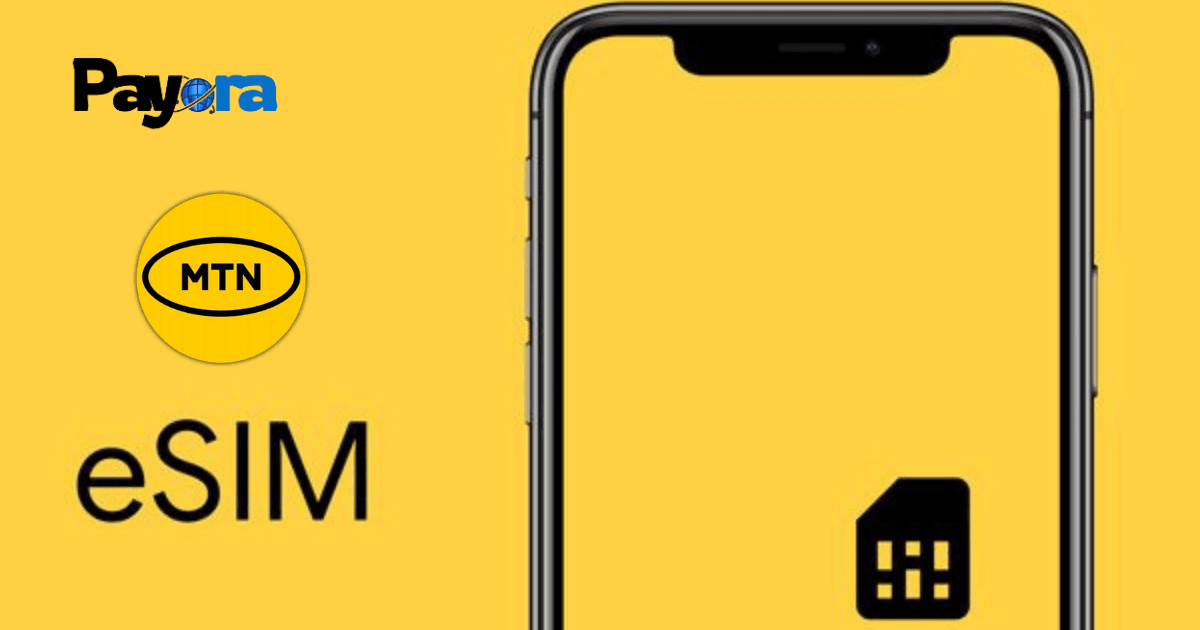

 

Download the Payora App

Experience seamless transactions on the go. Top up your wallet, purchase data, pay bills, and trade gift cards - all from your smartphone.

Get it on Google PlayDownload on the App Store
Payora Mobile App